Kaliper Documentation
Coverage analysis
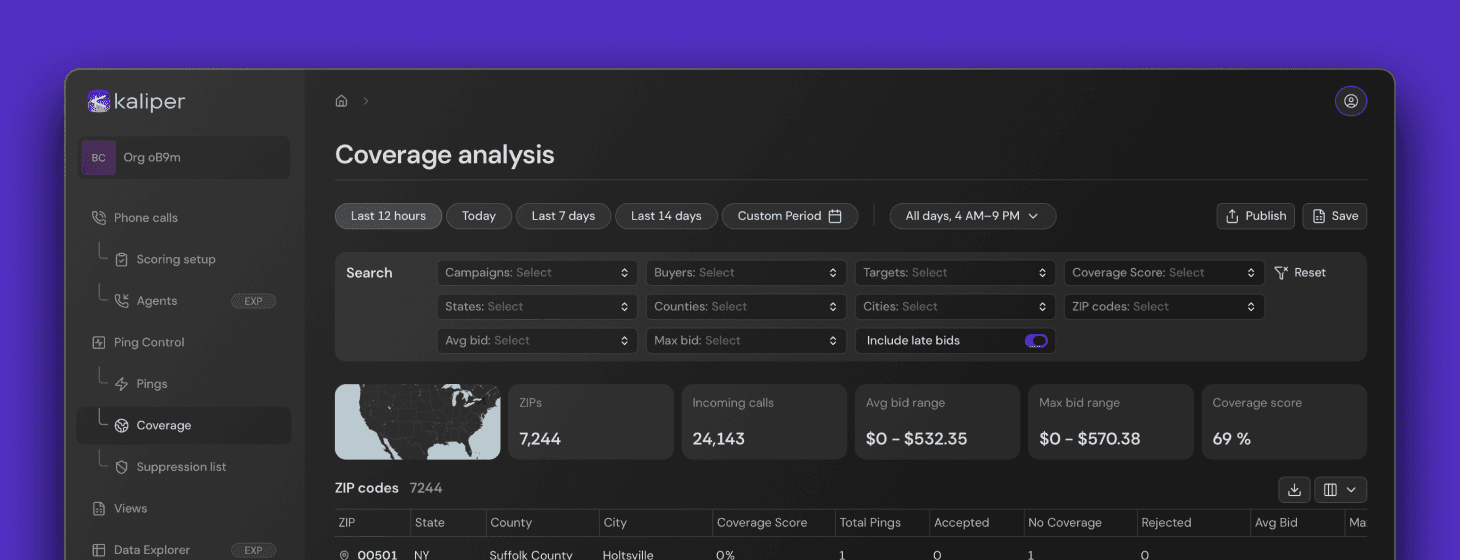
Coverage is a Kaliper UI module that allows the analysis of your network’s Coverage scores.
Coverage score is the percentage of pings sent with a given ZIP code that were accepted by buyers over a defined dataset. It is a historical stat, not an estimate.
Coverage score = Accepted Pings ÷ Sent Pings
Example
100 pings were sent to ZIP, 72 were accepted: Coverage score is 72%.
Important
Coverage score is only meaningful when scoped properly. It should typically be evaluated with filters such as: Campaign, Buyer, Target. Mixing unrelated traffic sources or buyer sets will distort the metric or render it meaningless.
Coverage score is calculated using only Accepted pings, which means all reject responses are treated as “no coverage,” regardless of whether the rejection was explicitly labeled as no_coverage.
Interpretation
High coverage for Buyer/Target: we send high quality pings with ZIP codes covered by buyer
Low coverage for Buyer/Target: we send low quality pings with unsupported ZIP codes
0% coverage for Buyer/Target: no buyer accepted any ping for that ZIP in the selected dataset
Published Coverage
The ability to create a safe managed external web page to advertise your network’s coverage.
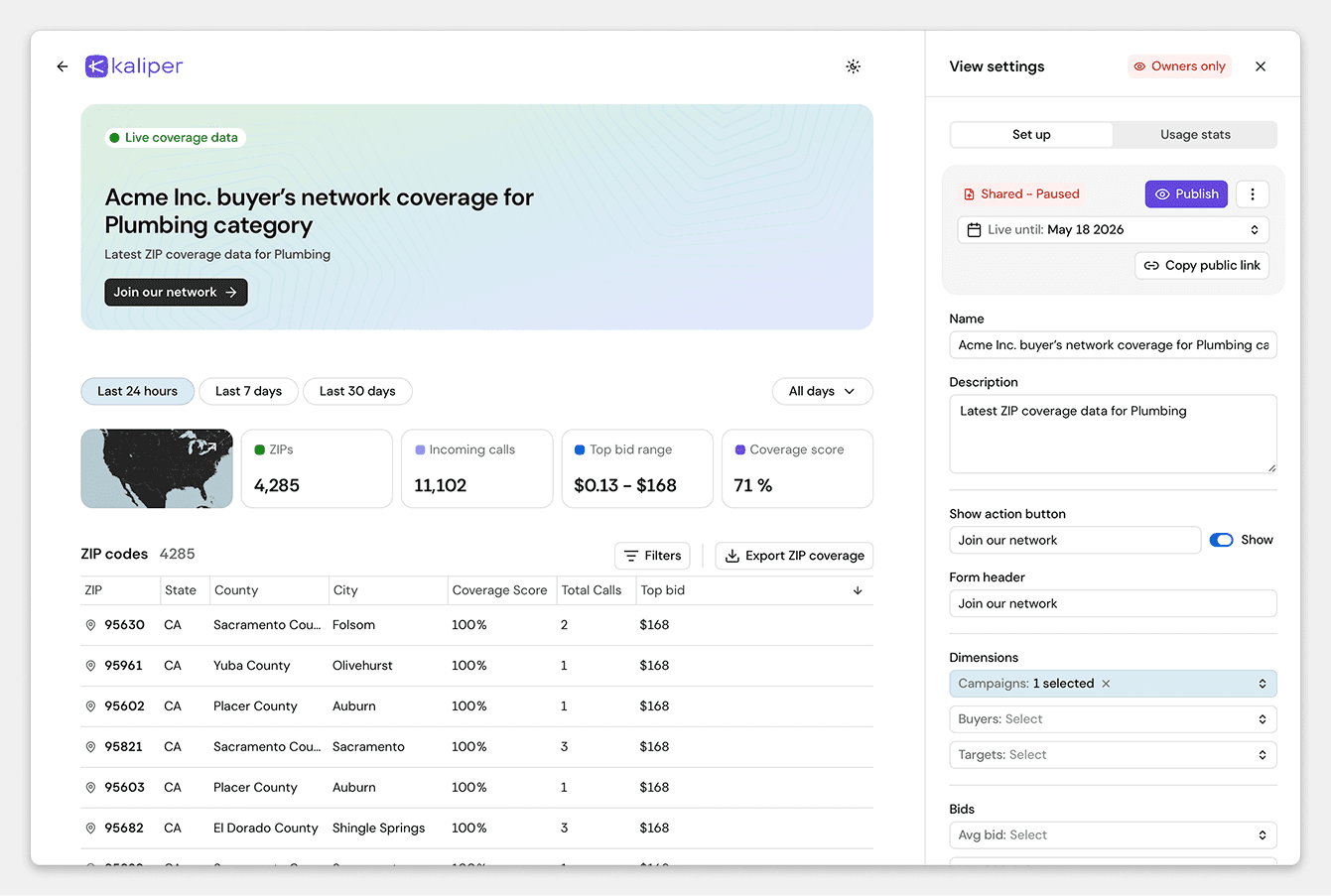
Creating the Published coverage
To share your coverage data with third parties, press the “Publish” button in the top right toolbar. The new page will open, showing the Published Coverage page Preview in the main area, and the sidebar with publishing settings. The Preview is what-you-see-is-what-you-get and will be updated instantly per your settings changes. The Published Coverage will be first created in “Paused” status to prevent accidental access. Update the desired settings, press “Publish” to make the page available for everyone, and share the link with your partners.
The sidebar with settings is only visible to users who are signed in as Organization members.
Settings
Publish settings – changes the status and schedule
Name and description – defines the visible content in the header area
Action button – edist the button that invites partners to your network
Dimensions – filters what data is included into Coverage Report. Initially, iot inherits the filters from the main UI, but can be updated at any time.
Bids – changes what ranges of bids to include
Geography – limits what geo regions (or just a list of ZIPs) to show
Table – sets up what Coverag scores range and columns to include, whether to show the Top Bid, Base Bid, and adjustment to it – in case you want the partners to see the actual payout they can count on with your profit priced in.
Viewing Published coverage as an external viewer
The viewer of your Published Coverage will be able to view, filter, and export the ZIP code based coverage data, and use the Action button to fill in the form in case they want to join your network through this channel.
© 2026 A-Launch. All rights reserved.